AI Hub lets your agency (and your clients) talk to their review data with Claude, Cursor, or ChatGPT
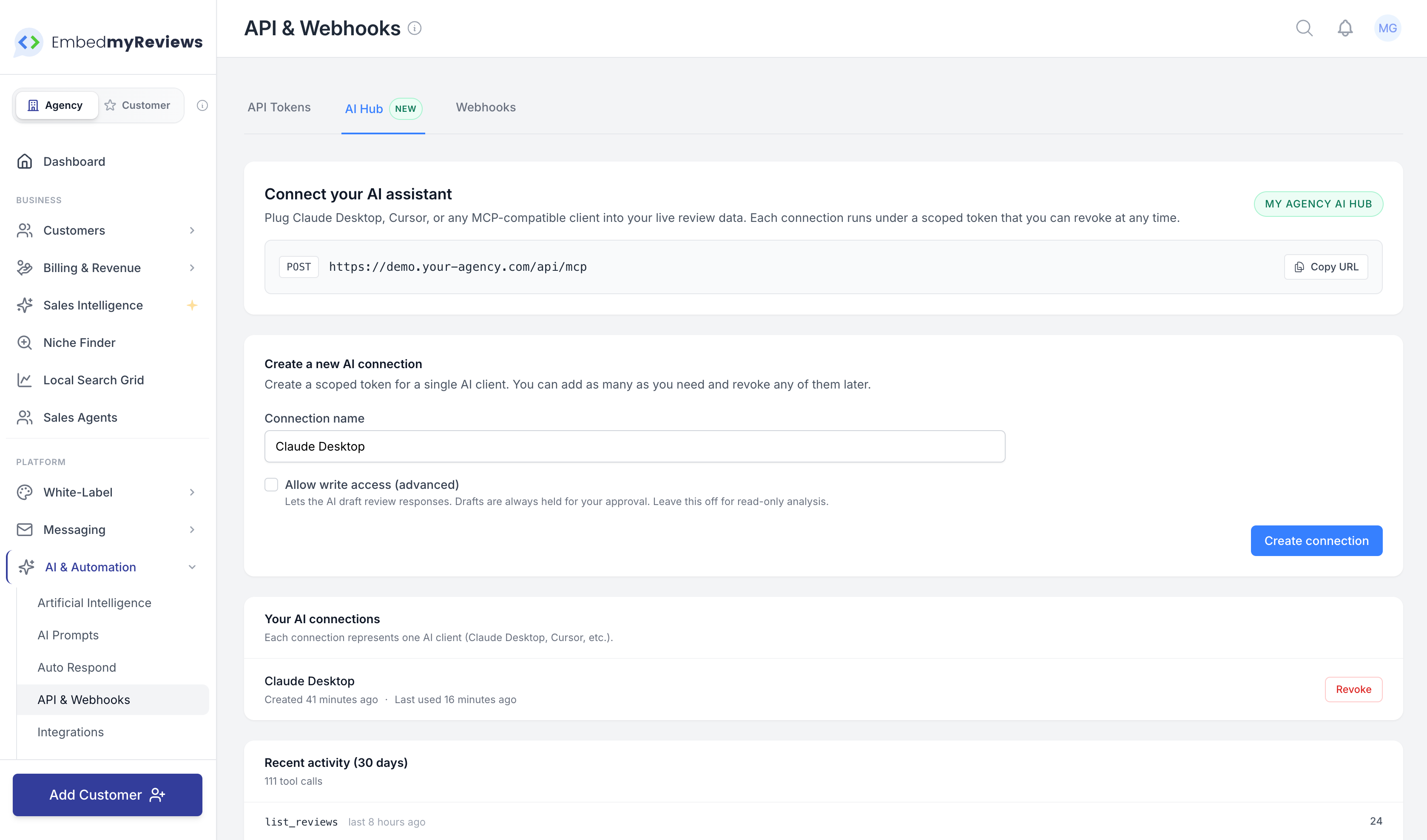
We've added a new way to get answers out of the platform. Instead of opening the dashboard, exporting a CSV, or pasting screenshots into an AI tool, you can now plug Claude Desktop, Cursor, ChatGPT, or any compatible AI assistant straight into your live review data. Ask a question in plain English and the AI pulls the answer from the same database you see in the dashboard.
It's included in your plan at no extra cost and is 100% white-label, so your clients see your agency branding, not ours.
What this actually is
The AI Hub is a small connector built into every agency workspace. AI assistants like Claude and Cursor can speak to it using an open standard called the Model Context Protocol (MCP). You don't need to understand the standard. All you need to know is that modern AI tools can now use your review platform as a working tool instead of a copy-paste surface.
You create a connection in the dashboard, paste a small config snippet into your AI client, and that's the setup done.
What your team and your clients can actually ask
These are real questions you can ask once the connection is live. The AI decides which tools to use and returns a clean answer.
For your agency team
"Summarise last month's reviews for Acme Dental and pull out the three most common themes."
"Which of Acme's 14 locations has the lowest response rate? Show me the unanswered 3-star reviews at the worst one."
"Compare the open and click rates of the October campaign with the July one."
"Show me every client who doesn't have an auto-respond rule set up. That's my upsell list."
"Draft a reply to review 8421 in the voice of the clinic owner and hold it for my approval."
"Tag every review that mentions wait times with 'wait-time-issue' so I can filter for it later."
For your clients (when their plan allows API access)
"How many 5-star reviews did I get this week? Which locations got them?"
"What are customers complaining about most this month?"
"Did that recent email campaign actually get reviews or just clicks?"
"Show me the private feedback from the last 20 customers who filled out my form."
Every answer comes from the live database, not a stale export.
How to get started
Three quick steps. Under a minute if Claude Desktop or Cursor is already installed.
1. Open the AI Hub in the dashboard. Go to Settings then AI Hub. There's also a shortcut under Settings then API & Webhooks on the Connect AI tab.
2. Create a connection. Click Create connection and give it a name that tells you which AI tool it belongs to, for example Claude Desktop. If you want the AI to be able to draft review responses (which are always held for your approval, never auto-sent), tick the Allow write access checkbox. Leave it off for a pure read-only connection. Click create.
3. Paste the config and restart. The dashboard shows a ready-to-paste snippet and the bearer token. Copy the whole block, open your AI client's MCP settings (in Claude Desktop that's Settings then Developer then Edit Config), paste, save, and restart the client. That's it.
The token is shown once at creation. Copy it straight away. If you lose it, just revoke that connection and create a new one.
You can create as many connections as you need. One for Claude Desktop, one for Cursor, one for your VA, one for an automation. Each one is its own token and can be revoked independently without affecting the others.
Which AI clients work with it
Any AI tool that supports the Model Context Protocol. That currently includes:
Claude Desktop
Claude Code
Cursor IDE
VS Code with Copilot Chat
ChatGPT custom connectors
The setup is the same for all of them: paste the snippet, restart, done.
Where to find everything in the UI
AI Hub dashboard at
SettingsthenAI Hub. This is where you monitor usage, view logs, browse the tool catalog, and see which of your connections are active.Create and manage connections at
SettingsthenAPI & Webhooks, then the Connect AI tab. You can also open it straight from the AI Hub dashboard.Developer documentation under your white-label API docs. The MCP section sits alongside the REST API and covers the endpoint, authentication, tools, and error codes for anyone on your team who wants the technical details.
Watching what the AI is doing
Every tool call is recorded. Nothing is hidden.
Open Settings then AI Hub to see:
Total calls, average response time, active callers, and issues across the time range you pick (last 24 hours, 7 days, 30 days, or 90 days).
Call volume chart showing one bar per day so you can see activity spikes at a glance.
Tools used breakdown listing every tool that's been called, how many times, average response time, and error rate. Click a tool to filter the audit log below to just that tool.
Audit log with one row per call showing when, which tool, which connection called it, success or denied or error, duration, and how many rows came back. You can filter by date range, by tool, and by status.
Tool catalog reference showing every tool your AI clients can see, grouped by risk level, with its required permission.
For each call, parameters are recorded with tokens, emails, and phone numbers stripped out, so the audit log never becomes a private data surface. Calls older than 90 days are cleaned up automatically.
Who can use the AI Hub
You (the agency owner) have it on by default.
Your team members need the API access permission and the AI Hub permission on their role. You control this in your team settings.
Your clients can get it too, but only if the plan you sold them includes API access and the AI Hub permission. This means you can choose to offer AI Hub access as an upgrade feature on premium plans, or include it everywhere, or hide it entirely. It's your call, set per plan.
Safety features, because AI is still new
The AI Hub is designed to be safe to point a third-party AI tool at. The protections are on by default.
Read-only by default. A fresh connection can query data but cannot change anything. You have to tick the "Allow write access" checkbox when creating the connection to enable writing.
Write tools never auto-send. When the AI drafts a review response, it lands in your existing Auto-Respond approvals queue with the "awaiting approval" status. It does not reach Google or Facebook until a human clicks approve. Same protections as the rest of the platform.
Private customer information is redacted by default. Names, email addresses, and phone numbers on private feedback and contacts are hidden unless you specifically create a connection with PII access. Even for your own tokens, both the permission and an explicit opt-in on each call are required before any PII leaves the server.
Scoped to what the token owner can see. If a team member's role is limited to certain locations, any AI connection made by that person can only see those same locations. Same access rules as the dashboard.
Rate limited. 120 calls per minute per connection, 600 per minute across your whole workspace. A misbehaving AI client can't hog the platform.
Revocable in one click. Each connection is its own token, so if something feels off you revoke that one and every other connection keeps working.
White-label
Everything in the AI Hub lives on your domain. The endpoint is https://app.your-agency.com/api/mcp. The server name that your AI assistant sees uses your company name. The config snippet, the audit log, the dashboard, and the API docs are all your branding. Your clients never see our brand anywhere in the flow.
What's included, and what AI usage costs
The AI Hub is included in the $99 per month plan at no extra cost. There's no per-call fee and no per-token fee from us, and no separate AI Hub pricing tier.
The only variable cost lives on your AI client side. When Claude Desktop or Cursor makes a call using the Anthropic or OpenAI model it's running, you pay your AI provider directly for that model usage, the same as any other conversation with that tool. Usage is typically fractions of a penny per question.
What's in the toolbox today
Thirteen tools ship in the first release. In the dashboard's Tool Catalog you'll see each one grouped by risk level.
Read tools (seven)
List and filter reviews across organisations, locations, sources, dates, ratings, sentiment, response status, and full-text search
Fetch a single review with its reply, tags, and auto-respond history
List organisations with review count and average rating
List locations with review count and average rating
Aggregate metrics over a date range with optional grouping by day, week, month, location, organisation, source, rating, or sentiment, and with period-over-period comparison
List review-request campaigns with their status, schedule, location, and full funnel (invited, opened, clicked, reviewed, redirected, testimonials submitted, private feedback, unsubscribed, bounced) plus conversion and engagement rates
Retrieve existing AI Insights analysis for an organisation or location
Read tools with access to private data (four)
List private feedback submissions (PII redacted unless both conditions above are met)
List review-request contacts with their subscription state, latest activity, and engagement counters
Fetch the full activity timeline for one contact, showing every invite, open, click, video play, redirect, testimonial, private feedback submission, unsubscribe, bounce, and spam complaint
List configured auto-respond rules
Write tools (two, always held for approval)
Draft a response to a review. Always goes to the Auto-Respond approvals queue first.
Attach or detach tags on up to 50 reviews per call for theme clustering.
More tools will land over time. You don't need to do anything for new tools to show up for your connections.
Where to read more
Feature overview at
/features/ai-hub-mcp-serveron your public siteFull setup walkthrough in your documentation under
AI Features, titledAI Hub (MCP Server): Setup & UsageAPI reference in your developer documentation, in the
AI Hub (MCP)section alongside the REST API reference
In one line
Your clients' review data, connected to the AI tools your team already uses, running under your brand, with every call logged, PII protected, and write actions held for human approval. Included in every plan.